Microsoft Word Skills in Ghana: 7 Skills Employers Test For
Years ago I sat in on an interview for an administrative assistant role at a small NGO in Accra. The candidate's CV was good — university degree, solid grades, a…


Years ago I sat in on an interview for an administrative assistant role at a small NGO in Accra. The candidate’s CV was good — university degree, solid grades, a reference letter from her church. Then we asked her to type and format a one-page letter while we watched.
She froze.
Not over the typing. She didn’t know where the margins lived, or how to set paragraph spacing, or what a page break actually did to a document. She’d been using Word for years the way most people use it — typing, hitting Enter whenever she wanted a gap, and trusting the printer to sort out the rest.
She didn’t get the job, and I’ve thought about that interview a lot since. Not because she wasn’t capable. Because nobody had ever told her which parts of Word employers actually check. They don’t care whether you can find the File tab. They care whether the document you hand over looks like it was made by someone who knew what they were doing.
If you’re weighing up which digital skills pay back fastest, our breakdown of the best computer courses in Ghana puts Microsoft Office near the top, and Word is where it starts. What follows are the seven Microsoft Word skills in Ghana that come up again and again in hiring — useful whether you’re job hunting, already employed and wanting to be the person who gets asked, or just producing documents for your own business.
ToC
Table of Contents
Why Microsoft Word Skills Still Matter in Ghana
Walk into a bank in Accra, an NGO off Spintex, a government office at Ministries, or a church administration in Kumasi, and you’ll find the same software open on nearly every screen. Not Google Docs. Word. It’s been the standard for decades and 2026 hasn’t shifted that at all.
Job adverts here ask for “proficiency in Microsoft Office”, which sounds vague until you work out what’s behind it. What the employer means is narrower and more practical — can you produce a document that’s cleanly formatted, prints without incident, and doesn’t embarrass the organisation when it goes out? Manage that and you’re already ahead of most of the pile, degrees included.
It reaches past employment, too. Running a small business means invoices, quotations and letters. Studying means assignments that get marked partly on how they look, whether or not anyone admits it. Serve in a church and sooner or later somebody has to format the weekly programme, and it usually ends up being whoever’s best at it. Not much software touches this many corners of professional life here.
1. Document Formatting That Looks Professional
Most people type into Word as though it were a typewriter. Enter twice between paragraphs. Tab key used to shove things roughly into position. Font swapped halfway down the page because something looked off. The result reads like a draft even when the writing is finished and good.
Proper formatting isn’t complicated. Pick one font for headings and one for body text, then leave them alone. Set your paragraph spacing in the Paragraph dialog instead of with the Enter key. Keep the margins consistent. Set the page size to A4, which matters enormously here and I’ll come back to it. Then read it through for awkward gaps and lines stranded on their own at the top of a page.
A hiring manager once told me he can tell inside ten seconds of opening a file whether the person who made it knew what they were doing. I thought he was exaggerating until I started paying attention. The eye picks up uneven spacing and randomly bolded text immediately, even when the reader couldn’t name the problem if you asked.
If you take one thing from this guide, take this one. Open the Paragraph settings. Set the spacing there. Use the ruler for your margins. Your documents will look different by the end of the afternoon.
2. Styles and Automatic Tables of Contents
This is the one that separates casual users from people who genuinely know Word. It’s also not difficult — most people simply have never been shown it exists.
In the Home tab there’s a Styles gallery: ready-made formatting for headings and body text. Instead of bolding a heading, changing its font, bumping the size, and then repeating all of that thirty times through a long report, you apply a style once. Heading 1 for your main sections, Heading 2 for subsections, Normal for everything else.
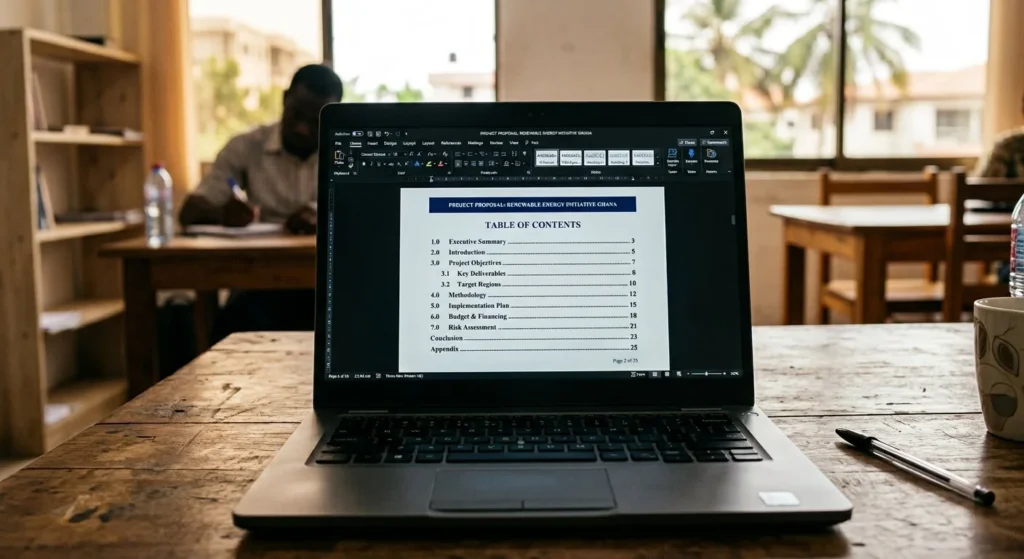
Do that, and Word will build your contents page for you. References, then Table of Contents, then pick a layout. Edit the document later and you just right-click the table and choose Update Field — it redraws in about a second, page numbers and all. Microsoft’s own walkthrough has the screenshots if you want them.
I’ve watched students spend three-quarters of an hour typing a contents page by hand and checking every page number, for a job the software does instantly. Learn styles. You’ll be grateful the night you’re formatting a forty-page project report at 2am.
Our Microsoft Word tips and tricks guide collects more in this vein — shortcuts and formatting habits people rarely stumble across on their own. Worth a bookmark if working faster appeals to you.
3. Page Layout and Printing
A student of ours once printed her final-year project — sixty-five pages, the whole thing — and found the right margin sliced off every single page. She’d built the document at Letter size, the American default, and printed it on A4, which is what every printer in this country runs. The two don’t match, so the printer simply cropped what didn’t fit.
It happens far more often than it should. Before you type anything, go to Layout, then Size, then A4. Then look at your margins: Normal at one inch all round suits most documents, Narrow buys you space but reads cramped, and Wide leaves room for binding or for someone to scribble notes.
Learn the two orientations while you’re there — Portrait for reports and letters, Landscape when you’ve got a wide table or a chart that won’t otherwise fit. And use Print Preview, every time, before anything goes to the printer. One look saves paper, toner and a certain amount of dignity.
4. Keyboard Shortcuts That Save Hours
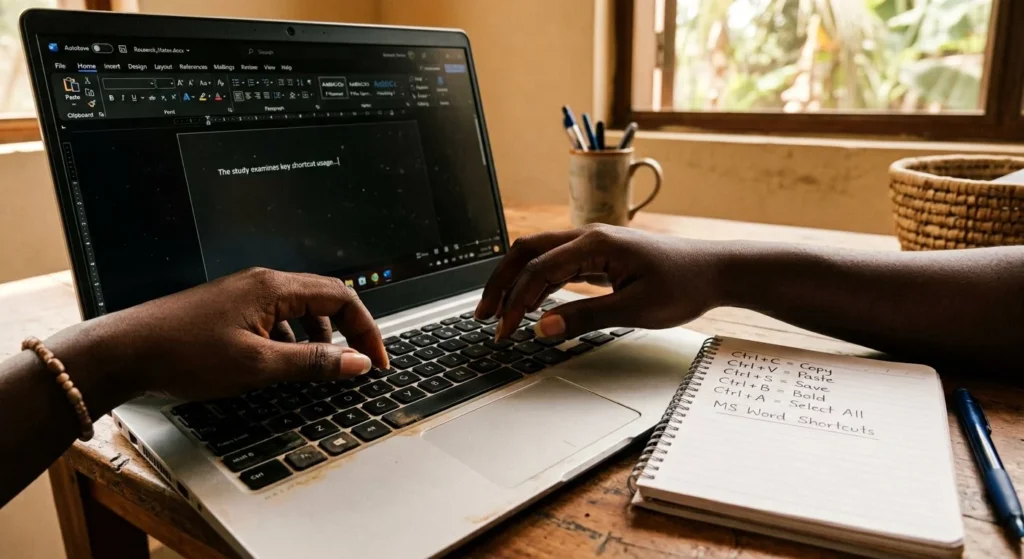
Everyone knows Ctrl+C and Ctrl+V, so I’ll skip those. These four are the ones people tend to miss, and between them they’ll change how fast you work.
Ctrl+H opens Find and Replace. Somebody’s name changes halfway through a thirty-page contract and you fix every instance in seconds. Do be careful what you’re replacing, though — running a replace on a short word like “man” will happily wreck “management” and every similar word in the file.
Ctrl+Shift+V pastes without formatting. Text copied off a website drags its fonts and colours along behind it, and this strips all of that so it matches whatever you’re already writing in. I use it more than any other shortcut on this list.
F12 is Save As. One key, no mouse, no hunting through menus. A good reflex to build before you make major edits to something.
Ctrl+Enter inserts a page break. Stop pressing Enter twenty-seven times to get to the next page — a real break stays exactly where you put it when you edit the text above it, which the twenty-seven Enters absolutely will not.
Give them a week of deliberate use and they’ll be automatic.
5. Mail Merge for Business Letters
If your office sends letters, invitations or certificates out to lists of people, Mail Merge will make you look like some kind of wizard for about a fortnight, until everyone gets used to it.
The idea is simple enough. Your names and addresses sit in Excel. Your letter template sits in Word. Mail Merge pulls each record into the template and produces a personalised copy for every person on the list — a hundred letters in under two minutes, all correctly addressed.
I’ve watched administrative officers go from losing an entire day to a mass mailing to being finished before lunch. Managers notice that sort of thing, and they remember it when other opportunities come up.
The setup lives under Mailings, then Start Mail Merge, then the step-by-step wizard. Walk through it once with a short list and it’ll make sense — it’s considerably less intimidating than the name suggests.
6. Track Changes and Comments
The moment you’re working on a document with anyone else — a colleague, a supervisor, a client — Track Changes earns its place. Every edit gets logged with a name and a timestamp, and the other person can go through accepting or rejecting them one at a time.
Which means no more emailing “version 3 FINAL FINAL (revised).docx” back and forth until nobody’s sure which file is current. One document, every change visible.
Comments are the companion feature. Go to Review, then New Comment, or select some text and press Ctrl+Alt+M. You get a note in the margin without touching the actual text, which is exactly what you want for questions and suggestions that shouldn’t end up in the finished document.
Both are completely standard in professional workplaces. Use them and you look like you’ve done this before. Not know they exist and, well, that shows too.
7. CV and Job Application Documents
Your CV is probably the most consequential Word document you’ll ever produce, and most of the ones I see from Ghanaian job seekers have the same handful of problems — inconsistent formatting, too many fonts, no clear structure, and content that lists what you were responsible for rather than what you actually achieved.
Keep it to one professional typeface; Calibri and Georgia both work and neither draws attention to itself. Two pages maximum, and one is fine early in a career. Build the section headings with Word styles rather than manual bolding, which also means you can restructure the whole thing in seconds later. Write achievements with numbers attached wherever you can, because “increased sales” and “increased sales by 30% in six months” are not the same sentence. Save it as both .docx and PDF, and send the PDF unless somebody specifically asks for Word.
Same principles apply to cover letters and anything else going to a person who might hire you. A clean document makes you look competent before anybody has read a word of it. A messy one costs you the room just as quickly.
Why Employers Test Microsoft Word Skills in Ghana
I’ve asked a number of hiring managers in Accra why they bother testing Microsoft Word skills in Ghana during interviews rather than taking the CV at its word. The answers barely vary.
“Everyone says they know Microsoft Office on their CV. Most of them don’t.”
“I don’t have time to teach someone how to format a report. I need them to know on day one.”
“The person who formats documents well is usually the person who pays attention to detail in everything else.”
None of which is unreasonable. Word isn’t complicated software. Using it the way an experienced office worker does, though, takes deliberate practice that most people never get around to — which is precisely why it’s still worth something in an interview.
The encouraging part is that all seven of these can be learned in about two weeks. If you’ve got an application coming up, open a blank document now and write a sample cover letter. Set the margins properly. Use styles for the headings. Add a header with your name and contact details. Do it three times and it stops being something you have to think about.
For structured training with an instructor, practice files and real assignments, our Microsoft Word Essentials course covers all of this. And if you’re still deciding where to point your digital skills generally, our overview of computer training in Ghana goes into what separates a good programme from one that just takes your money — where you learn matters nearly as much as what.
The distance between someone who “knows Word” and someone who actually knows it is roughly a fortnight of focused practice. Hardly anyone does it. Be one of the few.
Frequently Asked Questions
FAQ’s
Do I need my own laptop to learn Word properly?
It helps, but no. A desktop at a cyber café, a shared machine at school, even a tablet running the mobile app will get you most of the way. What matters is turning up regularly — a few hours a week on documents that actually matter to you. Plenty of our students learned at public computer centres long before they owned anything themselves.
How long until I’m genuinely proficient?
Two weeks of regular practice gets you to a cleanly formatted letter or report. Styles, Mail Merge and Track Changes add another two or three weeks on top. Becoming the person the whole office brings their documents to takes a few months of steady real-world use, though that happens almost without you noticing.
Is Word still relevant when Google Docs exists?
Yes. Docs is excellent for working on something with other people in real time, and I use it happily for that. But Word remains the standard in Ghanaian offices, law firms, banks, government bodies and universities, and the job adverts still say Microsoft Office. Learning Word first also makes Docs easy to pick up afterwards. The reverse is less reliably true.
What’s the fastest way to improve?
Use documents you actually need. Format your own CV. Write a real business letter you have to send. Build a report with a proper automatic contents page. There’s a stake in your own work that a practice exercise can’t manufacture, and the stake is what makes the learning stick.
Can Word skills alone get me a job here?
Not on their own. Combined with decent typing speed, a professional manner and some basic Excel, though, they open doors to administrative assistant, office clerk, data entry and secretarial roles across every sector. Most of those are entry-level, but they pay steadily and they lead somewhere. Adding Excel afterwards raises the ceiling considerably. Bear in mind outcomes vary with your location, your experience and what the job market is doing.
Which version should I learn on?
Microsoft 365 or Word 2019 onwards if you have the choice — the ribbon is close enough across those that your skills transfer without friction. A lot of Ghanaian offices are still running Word 2016 and almost everything here works identically there. On something older, concentrate on styles, layout and shortcuts, none of which have meaningfully changed in ten years.
What do Word courses cost in Ghana?
Short beginner courses at private centres run from a few hundred cedis up to around GH₵1,500, depending on how long they are, whether the centre provides the computers, and whether there’s a certificate at the end. Free options exist on YouTube and Microsoft’s own support site. The trade-off there is that nobody sequences the learning for you or tells you when you’ve picked up a bad habit.
Where to start today: open your CV, delete every manual double-Enter in it, rebuild the headings with Word styles, and save it out as a PDF. That single pass will teach you more than an hour of watching tutorials.
Hi, I’m Ovadia, the founder of Ovateq. I’m passionate about technology, digital skills, and helping people learn practical tools that can improve their careers, businesses, and everyday lives. Through Ovateq, I create beginner-friendly tutorials and educational content focused on Microsoft Office, digital literacy, website development, and modern tech skills. My goal is to make technology easier to understand and more accessible for everyone.