
Microsoft Excel for Beginners: 7 Step-by-Step Skills to Learn Excel Fast
Microsoft Excel for beginners can feel overwhelming - you open it, see hundreds of grey cells, and close it again. That's a reasonable response to something nobody properly taught you.…

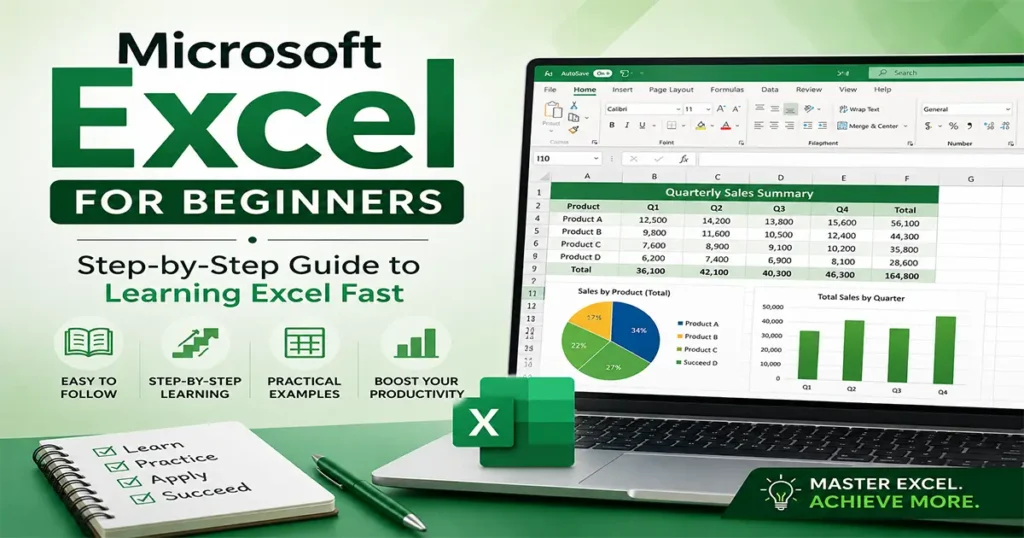
Microsoft Excel for beginners can feel overwhelming – you open it, see hundreds of grey cells, and close it again. That’s a reasonable response to something nobody properly taught you.
Whether you’re a student, job seeker, or just tired of avoiding spreadsheets, this Microsoft Excel for beginners guide is the starting point.
Here’s the honest truth: most of what people actually need from Excel – tracking expenses, organizing data, running basic calculations – can be learned in an afternoon. You don’t need to be an accountant or a data analyst. You just need to get comfortable enough that the blank spreadsheet stops feeling hostile.
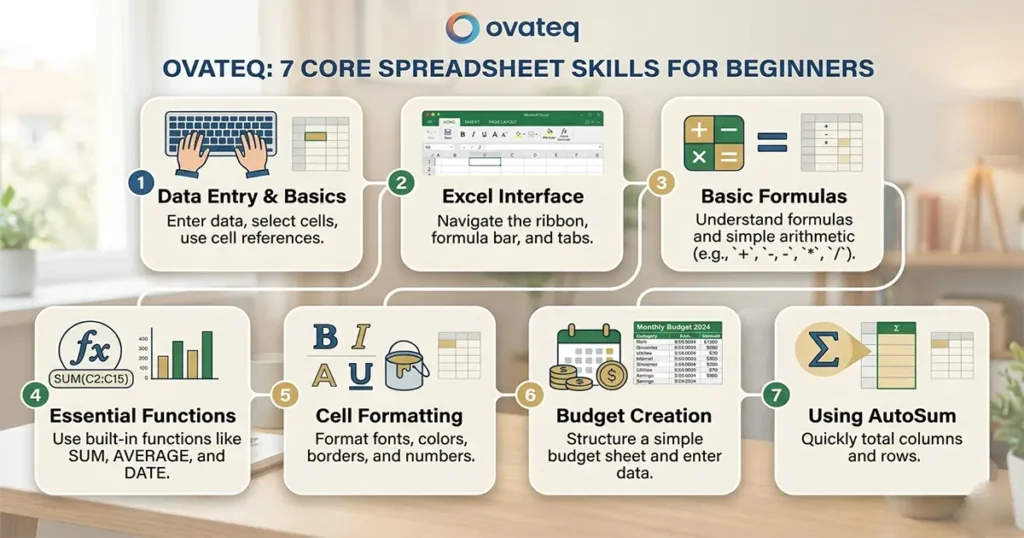
This guide covers 7 core skills in the order that actually makes sense. By the end, you’ll know how to build a working spreadsheet from scratch and use formulas that do real work.
Microsoft Excel for Beginners – Table of Contents
Table of Contents
What Microsoft Excel Actually Is
Microsoft Excel for beginners starts here: it’s a spreadsheet program made by Microsoft that organizes information into rows and columns and does math on that information automatically. It organizes information into rows and columns, and it can do math on that information automatically. That’s the core of it.
People use Excel for budgets, invoices, schedules, inventory lists, data analysis, project tracking, and about a hundred other things. It’s been the standard spreadsheet tool in offices since the late 1980s, and it’s still everywhere – which is exactly why learning it is worth your time.
If you’re using Google Sheets, nearly everything in this guide applies to you too. The interfaces look different but the logic is the same.
Getting Started: The Excel Interface
When you first open Excel, you’ll see a grid. Each box in the grid is called a cell. Cells are identified by a letter (the column) and a number (the row). So the cell in the first column, first row is called A1. The cell two columns over, three rows down is C3.
At the top, you have the ribbon – a toolbar with tabs like Home, Insert, Formulas, and Data. Most of what you’ll need day to day lives in the Home tab.
At the bottom, you’ll see sheets – tabs you can click to switch between different pages within the same file. Think of them like pages in a notebook.
One thing beginners often miss: whatever you type goes into the formula bar (the long white bar just above the grid). You can type directly in a cell or in the formula bar – both work.
Getting familiar with this layout is the first real milestone in learning Microsoft Excel for beginners.
Step 1: Entering and Editing Data
This is where Microsoft Excel for beginners starts to click – just select any cell and start typing.. Hit Enter to move down to the next row, or Tab to move right to the next column.
To edit something you already typed, either double-click the cell or press F2 on your keyboard.
A few habits worth building early:
- Keep one type of data per column (dates in one column, amounts in another, names in another)
- Use row 1 as your header row – label each column so you know what’s in it
- Don’t put spaces in column headers if you can avoid it (“First Name” is fine; “firstname” is easier for formulas)
None of this is a strict rule. But organized data is easier to work with, and you’ll thank yourself later.
Step 2: Formatting Your Spreadsheet
Raw data is hard to read – and one thing every Microsoft Excel for beginners guide should cover early is formatting, because it’s what makes a spreadsheet actually usable.
Bold and alignment – select any cell or range of cells, then use the buttons in the Home tab to make text bold, change its alignment, or adjust the font size.
Column width – if text is getting cut off, hover over the line between two column headers (A and B, for example) until you see a double arrow, then double-click. Excel will auto-fit the column to the content.
Number formatting – this one matters. If you type 1500 and want it to show as $1,500.00, select the cell and click the dollar sign button in the Home tab, or press Ctrl+Shift+4 on a PC. For percentages, use Ctrl+Shift+5.
Cell color – select cells, then use the fill color button (it looks like a paint bucket) to add background color. Useful for highlighting totals or headers.
Step 3: Basic Formulas – Where Excel Gets Useful
Formulas are where Microsoft Excel for beginners stops feeling like a glorified table and starts doing real work. Every formula starts with an equals sign (=). That’s how Excel knows you want it to calculate something rather than just display text.
SUM – adds up a range of numbers. =SUM(B2:B10) adds everything from cell B2 to B10.
AVERAGE – gives you the mean of a range. =AVERAGE(B2:B10)
COUNT – counts how many cells in a range contain numbers. =COUNT(B2:B10)
MAX and MIN – find the highest or lowest value in a range. =MAX(B2:B10) and =MIN(B2:B10)
These five formulas handle an enormous percentage of what most people actually need Excel to do. Don’t worry about memorizing them – just know they exist and you can look up the syntax when you need it.
Step 4: The IF Formula
No Microsoft Excel beginner guide is complete without the IF formula – it’s where Excel starts to feel genuinely smart
IF checks whether something is true, and then returns one value if it is and another value if it isn’t.
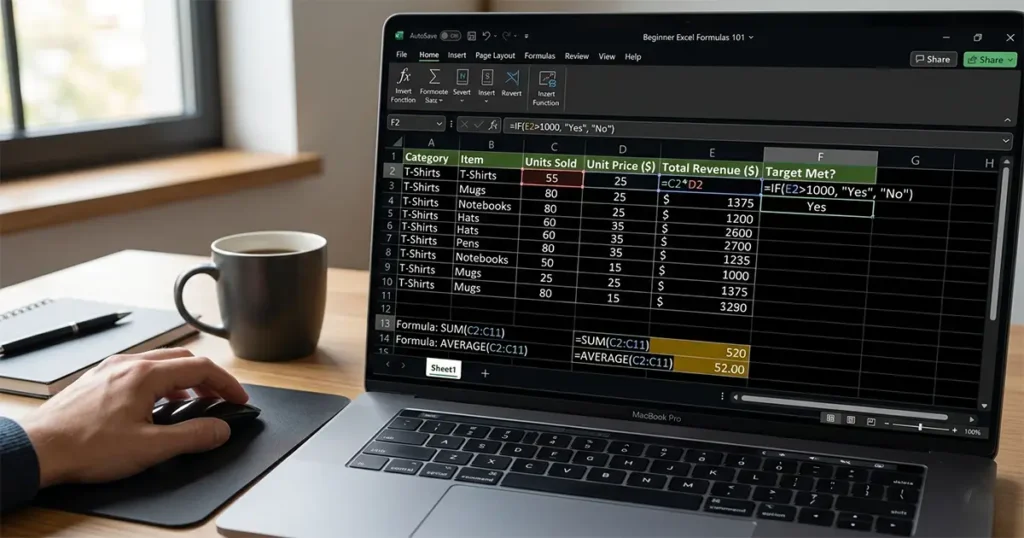
The format is: =IF(condition, value_if_true, value_if_false)
Example: you have a list of student scores and want to label each one as Pass or Fail. If 50 is the passing score:
=IF(B2>=50, "Pass", "Fail")
This reads: “If B2 is greater than or equal to 50, write Pass. If not, write Fail.”
You can make IF formulas more complex by nesting them – putting one IF inside another. But start with the simple version until it feels natural.
Step 5: Sorting and Filtering Data
Sorting and filtering are two of the most practical skills in Microsoft Excel for beginners – once you have data, you need to find things in it fast.
Sorting – click anywhere in your data, go to the Data tab, and click Sort. You can sort by any column, ascending or descending. Sorting a list of names alphabetically, or expenses from largest to smallest, takes about three clicks.
Filtering – click anywhere in your data, go to Data, and click Filter. Small dropdown arrows appear on your header row. Click one to filter by specific values. For example, in a sales spreadsheet, you could filter to show only rows where the region is “North.”
To remove a filter, click Filter again.
One important thing: when you sort or filter, Excel moves entire rows together, not just individual cells. Your data stays connected even as it rearranges.
Step 6: VLOOKUP — For When You Have Multiple Tables
VLOOKUP is the formula that separates casual users from people who really know Microsoft Excel. For beginners it looks intimidating, but once you use it once, it clicks.
It looks up a value in one table and pulls matching information from another. Classic use case: you have a product ID in one spreadsheet and a separate table with product IDs and prices. VLOOKUP finds the matching ID and returns the price.
The format: =VLOOKUP(lookup_value, table_array, col_index_num, [range_lookup])
In plain terms:
- lookup_value — what you’re searching for
- table_array — the range where you’re searching
- col_index_num — which column in that range you want to return data from
- range_lookup — use FALSE for an exact match (you almost always want FALSE)
Example: =VLOOKUP(A2, $D$2:$E$100, 2, FALSE)
This looks up the value in A2, searches the range D2:E100, and returns whatever’s in the second column of that range. The dollar signs ($) keep the table range fixed when you copy the formula down.
If VLOOKUP feels like too much right now, skip it and come back. Everything else in this guide is enough to build real, working spreadsheets.
Step 7: Saving, Sharing, and File Formats
The last step every Microsoft Excel beginner needs to know before anything else goes wrong: saving and sharing your work correctly. Excel doesn’t always auto-save unless you’re working in the browser version (Excel Online) or have OneDrive enabled.
For file format: the default is .xlsx, which works with any recent version of Excel and Google Sheets. If someone asks for a .csv, go to File → Save As → and choose CSV from the dropdown. CSV strips out formatting but keeps the data, and it’s compatible with almost every data tool on the planet.
If you’re sharing with someone who doesn’t have Excel, consider saving as a PDF (File → Export → Create PDF) or using Excel Online, which is free with a Microsoft account.
Keyboard Shortcuts Worth Knowing
These are the shortcuts every Microsoft Excel beginner should commit to muscle memory first – they’ll save you more time than almost any formula.
| Shortcut (PC) | What it does |
|---|---|
| Ctrl + C / V / X | Copy, paste, cut |
| Ctrl + Z | Undo |
| Ctrl + S | Save |
| Ctrl + Home | Jump to cell A1 |
| Ctrl + End | Jump to last used cell |
| Ctrl + Arrow keys | Jump to the edge of your data |
| F2 | Edit the selected cell |
| Alt + Enter | New line within a cell |
| Ctrl + Shift + L | Toggle filter on/off |
On Mac, swap Ctrl for Cmd on most of these.
Where to Learn More for Free
The basics in this guide cover everything a Microsoft Excel beginner needs for most day-to-day tasks. When you’re ready to go further:
- Microsoft’s own Excel training at support.microsoft.com — free, official, and surprisingly clear
- GCFGlobal.org — free Excel course built for complete beginners, with interactive exercises
- ExcelJet.net — the best reference site for formulas and shortcuts, searchable by what you’re trying to do
- YouTube — search for the exact thing you want to do (“Excel VLOOKUP tutorial”, “Excel drop-down list how to”) and you’ll find a walkthrough in minutes
- Ovateq – Learn, Build & Grow With Practical Digital Skills
The fastest way to get better at Excel is to use it for something you actually need. Build a budget. Track your workouts. Organize a list of contacts. Real problems make the learning stick faster than practice exercises.
A Note on Excel vs. Google Sheets
One question that comes up constantly for anyone exploring Microsoft Excel for beginners: do I need Excel or will Google Sheets do? If you have a Google account, Sheets is free and works similarly. Most of what you learned here – formulas, sorting, filtering, VLOOKUP – works in Sheets too.
The main differences: Excel handles larger datasets more smoothly, has more advanced features, and is the standard in most corporate environments. Sheets is easier to share and collaborate on in real time, and it autosaves to the cloud automatically.
If you’re learning for a job, learn Excel. If you’re learning for personal use and don’t have Microsoft 365, Sheets is a perfectly good place to start.
Final Thought
Microsoft Excel for beginners has a reputation for being complicated and honestly, some of that reputation is earned. But the core skills? A few focused hours and you’re genuinely useful with it. Some of that reputation is earned – the tool has thousands of features and you could spend years learning them all. But the core skills? A few hours of focused practice and you’re genuinely useful with it.
Start with a real spreadsheet – something you actually need – and build from there. That beats any course.
Published on Ovateq – Why Microsoft Excel Skills Matter in 2026
Frequently Asked Questions (FAQ’s)
Here are the most common questions people ask about Microsoft Excel for beginners.
Is Microsoft Excel hard to learn for beginners?
Not really – and most people overcomplicate it in their heads before they even start. The basics that cover 80% of real use cases (entering data, writing simple formulas, sorting, filtering) can be picked up in a few hours of actual practice. What trips beginners up is trying to learn everything at once instead of starting with one real task and building from there. Start small. The rest follows naturally.
Do I need to pay for Microsoft Excel to learn it?
No. There are two free options worth knowing about. First, Excel Online – the browser version of Excel at office.com – is free with a Microsoft account and handles most beginner tasks without any issues. Second, Google Sheets is free, works similarly, and shares most of the same formulas. If you eventually need the full desktop version of Excel, it comes with a Microsoft 365 subscription, which starts at a few dollars a month. But for learning the basics, free is fine.
What is the best way to learn Excel fast as a beginner?
Use it for something you actually need. That sounds obvious but it’s the thing most tutorials skip. Pick a real problem – a monthly budget, a list of contacts, tracking your work hours – and build a spreadsheet for it. You’ll hit real questions and learn things that actually stick. Supplementing with YouTube walkthroughs for specific tasks (“how to do VLOOKUP in Excel”) works better than watching a full course from start to finish.
What are the most important Excel formulas for beginners?
Five formulas handle most of what beginners actually need:
SUM – adds up a range of numbers
AVERAGE – calculates the mean
IF – returns different results depending on a condition
COUNT – counts how many cells contain numbers
VLOOKUP – finds a value in one table and pulls matching data from another
Get comfortable with those before touching anything else. Every other formula builds on the same logic.
What is the difference between Microsoft Excel and Google Sheets?
They’re close enough that skills transfer between them. The main practical differences: Excel handles large datasets faster and has more advanced features, and it’s the standard in most corporate and finance environments. Google Sheets is free, easier to share and collaborate on in real time, and autosaves to the cloud so you don’t lose work. If you’re learning for a job, learn Excel. If you’re learning for personal use and don’t have Microsoft 365, Sheets gets you there.
Can I learn Excel without any prior computer skills?
Yes, but basic computer literacy helps – things like knowing how to open files, navigate a desktop, and use a keyboard confidently. If those feel shaky, spend a little time on the fundamentals first. Once those are in place, Excel is learnable by anyone. The logic behind it (you put data in, you tell it what to do with the data) is straightforward once you stop being intimidated by the grid.
How long does it take to become good at Excel?
Depends on what “good” means to you. For basic proficiency – the kind where you can build a working spreadsheet, write common formulas, sort and filter data – a focused week of daily practice gets you there. For intermediate skills like VLOOKUP, PivotTables, and conditional formatting, add another few weeks of regular use. For advanced Excel (complex macros, VBA, data modelling), you’re looking at months. Most people, for most jobs, only need the first level. Don’t let the advanced stuff intimidate you out of starting.
Is Excel still worth learning in 2025 when AI tools exist? (Bonus)
Is Excel still worth learning in 2025 when AI tools exist?
Yes – and if anything, knowing Excel makes you better at using AI tools too. Excel is still the default spreadsheet in most workplaces. Job listings across finance, admin, marketing, logistics, and operations still list it as a required skill. AI tools can help you write formulas faster or explain errors, but they don’t replace the need to understand what you’re asking for. Someone who doesn’t know what a VLOOKUP does can’t tell whether the AI’s output is right or wrong.
Hi, I’m Ovadia, the founder of Ovateq. I’m passionate about technology, digital skills, and helping people learn practical tools that can improve their careers, businesses, and everyday lives. Through Ovateq, I create beginner-friendly tutorials and educational content focused on Microsoft Office, digital literacy, website development, and modern tech skills. My goal is to make technology easier to understand and more accessible for everyone.