
Microsoft Word Tips and Tricks to Work Faster and Smarter
Learn Microsoft Word tips and tricks to work faster and smarter in 2026. Introduction If you have spent any time working in Microsoft Word, you already know the feeling. You…



Introduction
If you have spent any time working in Microsoft Word, you already know the feeling. You are halfway through a report, and you realize you have been doing something the long way for years. Manually adjusting margins. Copying formatting one line at a time. Spending twenty minutes on a table of contents that Word could have built in thirty seconds.
I see this every week in our classes at Ovateq. Students arrive thinking they “know Word” — and then I show them Ctrl+H or the Format Painter, and the reaction is always the same: “Why did nobody teach me this before?”
Word is one of the most widely used applications on the planet, yet most people only ever scratch the surface of what it can do. This guide is for anyone who types documents regularly — whether you are a student in Accra working on assignments, an executive drafting board reports, or a freelancer sending client proposals. You do not need to be a tech expert. You just need to know where to look.
Let’s get into it.
Table of Content: click here
Table of Contents
Why Microsoft Word Skills Still Matter in 2026
Google Docs gets a lot of attention these days, and understandably so. But Word is still the standard in most offices, law firms, academic institutions, and government agencies across Africa and the rest of the world. Job listings routinely ask for “proficiency in Microsoft Office.” CVs, cover letters, legal contracts, research papers — they still live in .docx files.
Knowing Word well is a practical skill. It is not glamorous, but it saves time in ways that compound. Someone who types 1,500 words a day and learns even five good shortcuts can reclaim hours every week. That matters.
Beyond efficiency, formatting your documents well also makes you look more capable. A well-structured report with consistent headings and clean spacing communicates professionalism before anyone reads a single sentence
Keyboard Shortcuts That Save Time
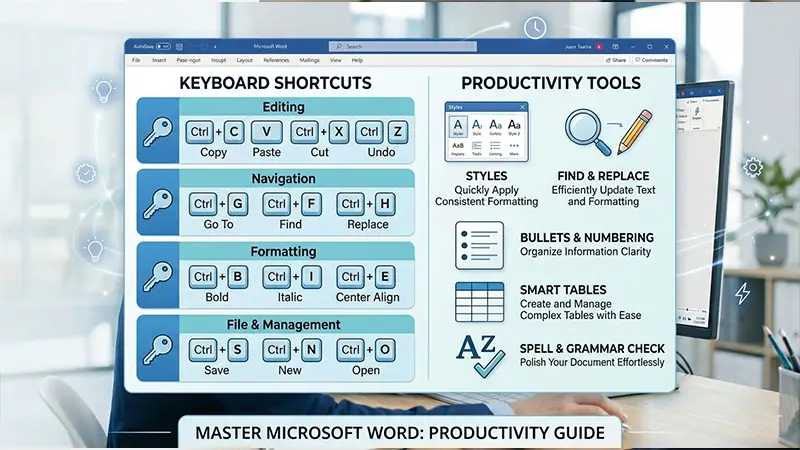
Most people know Ctrl+C and Ctrl+V. Fewer use the ones below — and that is where the real time savings live.
- Ctrl+Z and Ctrl+Y — Undo and Redo
You probably know Ctrl+Z undoes your last action. But Ctrl+Y redoes it. Press it repeatedly to move forward through your undo history. Useful when you undo too many times and need to recover. - Ctrl+F — Find Text Instantly
Opens the search bar. Type any word or phrase, and Word jumps to every instance in the document. If you want to replace a word throughout a long report, use Ctrl+H instead — it opens Find & Replace. This alone is worth knowing. - F12 — Save As Instantly
No mouse needed. Press F12 and the Save As dialog opens. A good habit when you want to save a version under a new name before making big edits. - Ctrl+Shift+V — Paste Without Formatting
This one solves a common headache. When you copy text from a website or another document, the fonts and colors often come along with it. Ctrl+Shift+V (or “Paste Special”) strips all that out and matches your current document’s style. - Alt+Shift+D — Insert Today’s Date
One keystroke. Word inserts the current date automatically. Useful for letters and reports. - Ctrl+] and Ctrl+[ — Increase or Decrease Font Size
No need to click the font size box. These shortcuts adjust the size of selected text one point at a time. - Ctrl+1, Ctrl+2, Ctrl+5 — Line Spacing
Select your text and press Ctrl+1 for single spacing, Ctrl+2 for double, and Ctrl+5 for 1.5. Students writing academic papers use this constantly.
Formatting Tricks for Professional Documents
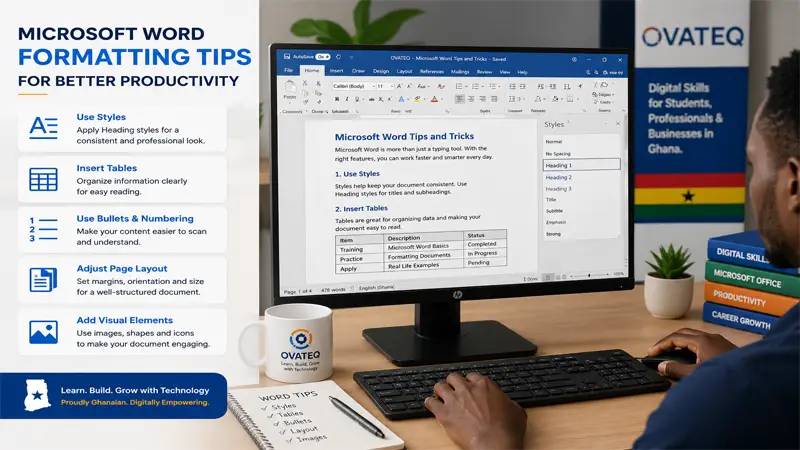
- Use Styles, Not Manual Formatting
This is the single most important Word habit to develop. Instead of manually bolding a heading and changing its font and size, apply a Style from the Home tab. Once you do that, you can update the look of every heading in your document by editing the style once. No hunting through 40 pages.
Styles also power the automatic Table of Contents (more on that below). - Create an Automatic Table of Contents
If you use Heading styles (Heading 1, Heading 2, Heading 3) consistently, Word can build a full table of contents for you. Go to References > Table of Contents > choose a style. Done. When you edit the document later, right-click the table and hit Update Field to refresh it.
This feature alone justifies learning Styles. A 30-page report with a clean, auto-updating TOC looks considerably more professional than one without. - Format Painter — Copy Formatting Instantly
Select text with the formatting you want to copy. Click the paintbrush icon (Format Painter) on the Home tab. Then click and drag over the text you want to reformat. It copies every formatting property — font, size, color, spacing — in one action.
Double-click the paintbrush to apply it multiple times without reselecting. - Adjust Paragraph Spacing, Not Line Breaks
A common beginner mistake: hitting Enter twice to create space between paragraphs. That looks sloppy and causes spacing inconsistencies. Instead, go to Home > Paragraph settings > change the “Space After” value. You get consistent spacing throughout the document with no extra blank lines. - Use Columns for Newsletters and Flyers
Word handles multi-column layouts reasonably well. Go to Layout > Columns and choose your configuration. Add a Column Break (Ctrl+Shift+Enter) to force text into the next column at any point.
Productivity Features Most People Ignore
- Track Changes
If you are working on a document with someone else — a colleague, a client, an editor — Track Changes is indispensable. Go to Review > Track Changes. Every edit you make is logged with your name and highlighted. The other person can accept or reject each change individually or all at once. No more emailing “new version 3 FINAL FINAL.docx.” - Comments
Related to Track Changes but simpler. Highlight text and press Ctrl+Alt+M to leave a comment in the margin. Useful for leaving notes to yourself or feedback for collaborators without changing the actual text. - AutoCorrect and AutoText
Word can automatically fix your common typos, but it can also do more. Go to File > Options. You can add your own shortcuts — for example, typing “sig” and having Word expand it to your full email signature. This is a small thing that adds up quickly if you type the same phrases repeatedly. - Document Inspector
Before sharing a document, run the Document Inspector: File > Info > Check for Issues > Inspect Document. It flags hidden data, personal information, invisible text, and comments that might be embedded in the file without your knowing. Genuinely important if you are submitting reports to institutions or sending contracts. - Restrict Editing
If you are sending someone a form or a document you do not want them to change freely, go to Review > Restrict Editing. You can allow only specific types of changes, or lock the document entirely with a password. - Navigation Pane
For long documents, the Navigation Pane (View > Navigation Pane) is a lifesaver. It shows all your headings in a panel on the left. Click any heading to jump there immediately. No scrolling.
Common Mistakes to Avoid
Most of these come up constantly among beginners in our classes, and they are easy to fix once you know about them.
[BULLET LIST]
- Pressing Enter repeatedly to start a new page. Use Ctrl+Enter for a proper page break. If you press Enter 20 times and later edit the text above, everything shifts.
- Using spaces to align text. Use tabs and tab stops, or just use a table. Spaces look inconsistent across different machines.
- Ignoring AutoSave. Turn it on if you are using OneDrive or SharePoint. Word can crash. Documents disappear. AutoSave has saved me more than once.
- Ignoring the word count. It’s in the status bar at the bottom. Always visible. Students writing to a word limit should keep an eye on it rather than checking at the end.
- Not using Section Breaks. If you want different margins, page orientations, or headers and footers in different parts of the same document, you need Section Breaks (Layout > Breaks). Without them, changes apply to the entire document.
Tips for Students, Office Workers, and Business Owners
[BULLET LIST]
- Students: Use Heading styles from the start of every assignment, then build a Table of Contents. Keep the word count visible. Run Review > Spelling & Grammar before submitting — but read the suggestions carefully, because Word sometimes suggests things that are grammatically wrong in context.
- Office workers: Master Track Changes and Comments if you do not already use them. Learn AutoText for any phrases you type repeatedly. Get comfortable with Mail Merge (Mailings tab) if you ever need to send personalised letters or emails to a list of people — it is far more powerful than most people realise.
- Business owners and freelancers: Use document templates. Save a formatted version of your proposal or invoice as a Word template (.dotx file). Every time you need a new one, open the template and you already have the right fonts, spacing, logo placement, and section headers ready. This saves 10–15 minutes per document.
For Beginners in Ghana and Across Africa
If you are learning Word for the first time in Ghana, Nigeria, Kenya, or anywhere else in Africa, here is the honest picture: these features work exactly the same regardless of your location. You do not need a paid Microsoft 365 subscription to practice. Microsoft offers a free online version of Word at office.com — just log in with a free Microsoft account and you have access to most core features.
Several digital skills programs across West and East Africa include Microsoft Office training in their curricula, and YouTube has good free tutorials. TVET institutions and polytechnics in Ghana often require Word skills for office administration programs. At Ovateq, our Microsoft Word Essentials course covers everything in this article and more, with hands-on practice files.
If you are preparing for a job that asks for “computer literacy” or “proficiency in MS Office,” focus first on these areas: creating and formatting documents, using Styles and headings, building tables, and using Find & Replace. Those four alone cover the majority of real workplace tasks.
Frequently Asked Questions (FAQs)
Frequently Asked Questions: click here
What are the most useful Microsoft Word tips and tricks for beginners?
Start with keyboard shortcuts like Ctrl+Z (undo), Ctrl+F (find), and Ctrl+H (find and replace). Then learn how to use Styles for headings and how to insert page breaks with Ctrl+Enter. These basics cover most of what you will need for everyday documents.
How do I make a table of contents in Microsoft Word automatically?
Apply Heading 1, Heading 2, and Heading 3 styles to your section titles. Then go to References > Table of Contents and choose a built-in style. Word builds the TOC from your headings. After editing the document, right-click the table and select Update Field to refresh the page numbers.
What is the shortcut to paste without formatting in Word?
Use Ctrl+Shift+V on Windows to open Paste Special, then choose Unformatted Text. This pastes text without bringing in the source formatting. Alternatively, right-click and select the “Keep Text Only” paste option (the icon that looks like a plain A).
How can I track changes in a shared Word document?
Go to Review > Track Changes and click the button to toggle it on. All edits will now be highlighted with your name. Others can then accept or reject each change under Review > Accept or Reject.
Can I use Microsoft Word for free?
Yes. Microsoft offers a free browser-based version of Word at office.com. You need a free Microsoft account to use it. It covers most features but lacks some advanced options found in the desktop version.
How do I stop Word from changing my formatting automatically?
Go to File > Options > Proofing > AutoCorrect Options. Under the “AutoFormat As You Type” tab, you can turn off automatic formatting rules like smart quotes, automatic bullet lists, and automatic hyperlinks.
What is the best way to format a professional report in Word?
Use Styles for all headings, set consistent paragraph spacing under Paragraph settings (not extra blank lines), add a Table of Contents, insert page numbers via Insert > Header & Footer, and run Document Inspector before sharing.
How do I password-protect a Word document?
Go to File > Info > Protect Document > Encrypt with Password. Enter a password, confirm it, and save. Anyone who tries to open the file will need that password. Keep it somewhere safe — Microsoft cannot recover it for you.
Conclusion
Word is deeper than it looks. Most people use it every week and still discover things after years of regular use — because they never needed those features until suddenly, they did.
The tips above are practical. They do not require any add-ons or advanced setups. Just a copy of Word, some time to practice, and the willingness to stop doing things the hard way.
If I had to pick three to start with, I would tell you what I tell every new class: Styles, Track Changes, and Ctrl+H. Get comfortable with those and you will already be ahead of most casual users. Then work through the rest gradually.
Digital skills build on each other. Word is a good foundation — and knowing it well opens doors, especially in markets like Ghana where employers still weigh Microsoft Office proficiency heavily in hiring decisions.
Hi, I’m Ovadia, the founder of Ovateq. I’m passionate about technology, digital skills, and helping people learn practical tools that can improve their careers, businesses, and everyday lives. Through Ovateq, I create beginner-friendly tutorials and educational content focused on Microsoft Office, digital literacy, website development, and modern tech skills. My goal is to make technology easier to understand and more accessible for everyone.



Great content! Keep up the good work!
Thanks senior Dev
wild trucks wild truck features